

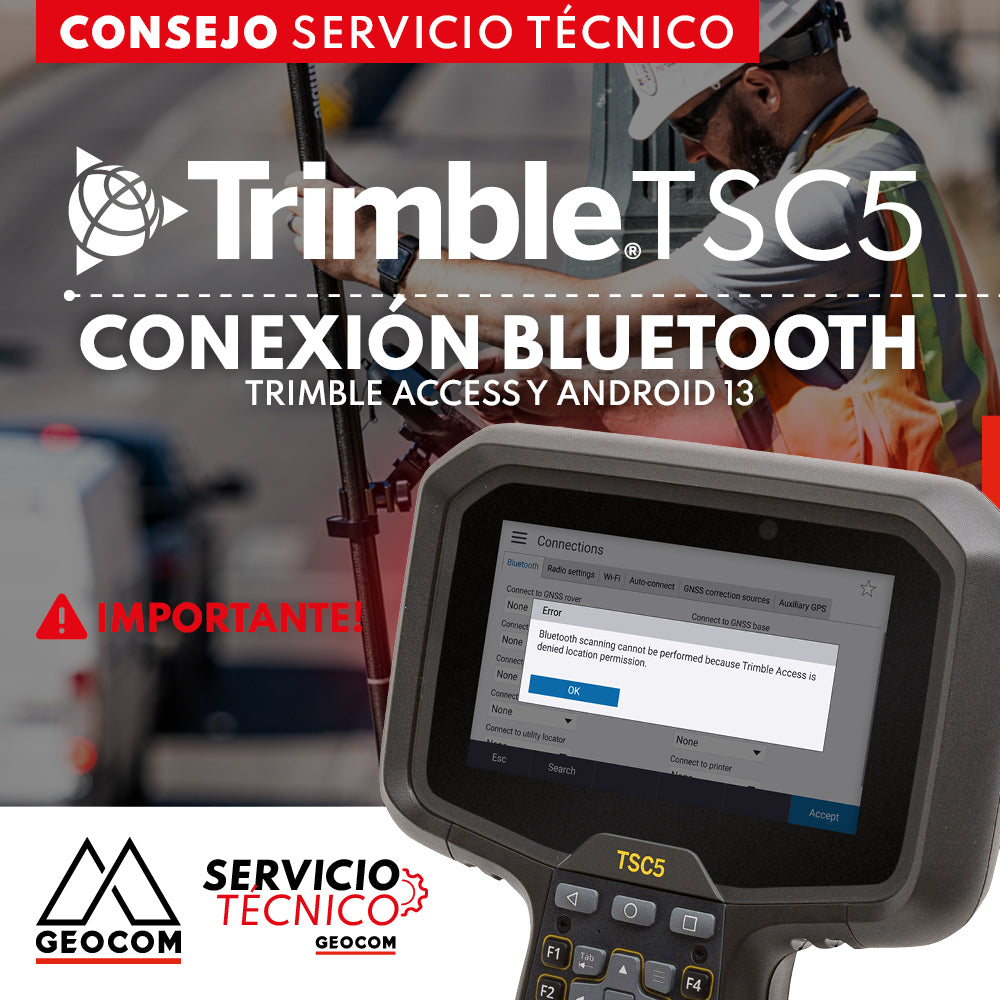

TECHNICAL SERVICE TIP | TRIMBLE TSC5: Bluetooth Connection - Trimble Access and Android 13
IN CASE THIS HAPPENS TO YOU
On TSC5, updating to Android 13 may cause Bluetooth issues with applications like Trimble® Access™️
One or more of the following issues may occur:
- Previously paired devices may not show up in Trimble Access, even if they are visible in the controller's operating system paired devices list.
- Performing a Bluetooth scan with Trimble Access does not display any devices to pair.
- In version 2023.10 and earlier, some Android permission dialogs may state that "location permission" is required, but it should refer to "nearby devices" permissions.

Trimble Access cannot communicate with Bluetooth devices without enabled "location" and "nearby devices" permissions.
SOLUTION:
Bluetooth issues can be resolved using one of the following solutions, start at step one and continue until you have successfully paired:
- When prompted for "nearby devices" permission, you must tap ALLOW.

- If you do not see the message in step 1 (for example, if you have already selected DO NOT ALLOW), restart Trimble Access and you will be prompted again to accept the permission.
- If you restart Trimble Access and still do not see this message, it probably means that the dialog appeared twice previously and you have already tapped DO NOT ALLOW each time. In this case, the operating system will not request permissions for Trimble Access again. In this case, to access permissions, from the controller's operating system go to Settings/Apps/All Apps/Trimble Access/Permissions/Nearby Devices and tap.
- If this doesn't work, from the controller's operating system go to Settings/System/Reset/Reset app preferences and tap Reset app preferences. Your controller will restart.
After the controller has restarted, run Trimble Access and tap ALLOW on all permission dialogs.

Compartir:
TECH TIP | TRIMBLE TSC5: Operating System Update to Prevent Battery Charging Failure