

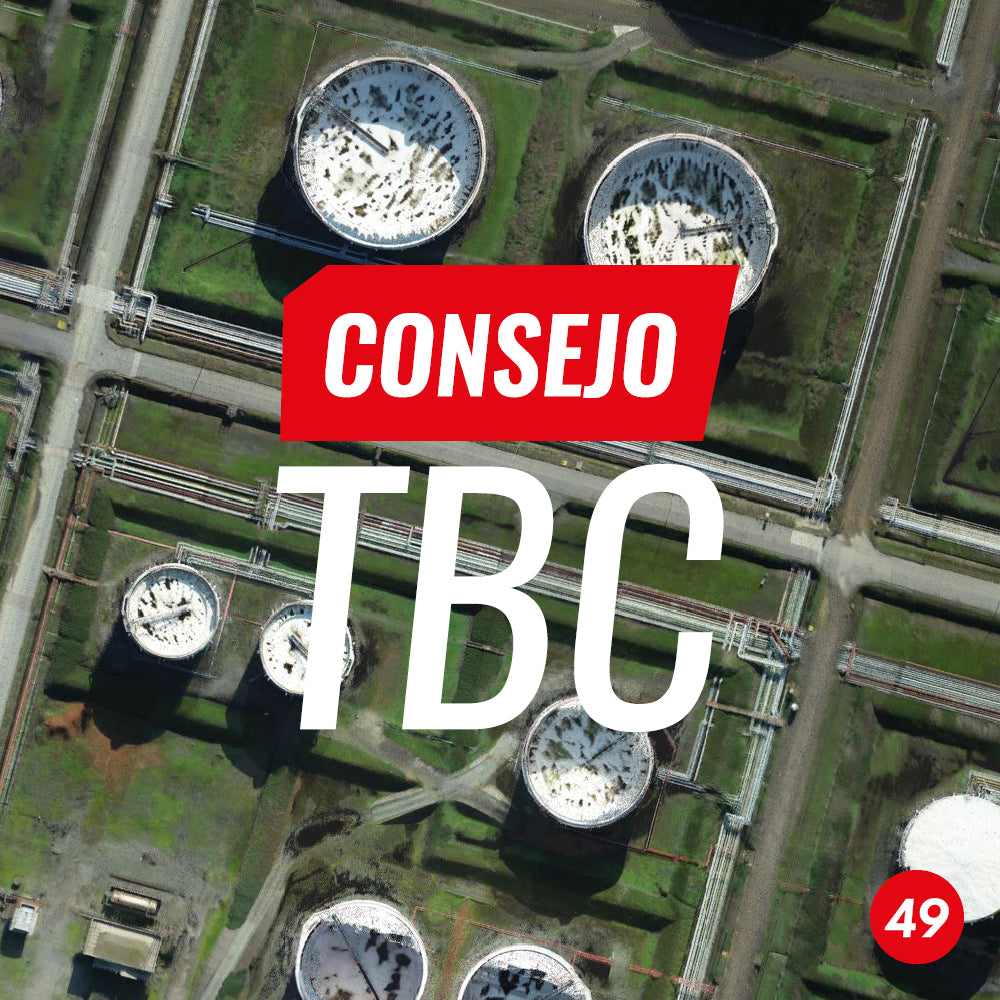

An orthophoto is a georeferenced photographic image whose topographic reliefs and planimetric distortions (caused by the tilt of the camera) have been corrected. Its function is to represent an orthographic image of an area of interest, allowing horizontal or projected distances to be measured, as it is an orthographic representation of a particular surface, taking into account the natural orientation provided by the direction of gravity or an instantaneous projection plane. Currently, orthophotos are a widely used deliverable in various engineering projects and are mainly generated from photogrammetric surveys using unmanned aerial systems.
Meanwhile, a rectified image corresponds to a 2D orthoimage obtained from photographic images captured with a total station or other optical instrument. For its creation, first, an appropriate plane must be defined to use the image, then a rectangle must be drawn to specify the area to be covered, and finally, the resulting image must be selected.
Initially, it is important to note that the creation of an orthophoto requires a point cloud, while the rectified image requires a photo station obtained from Trimble Vision technology.
Both functionalities described above can be generated in the point cloud module of Trimble Business Center. To do this, you must first define the coordinate system used in the project:

Image 1: Definition of coordinate system
Then, a clipping plane view must be established. The options for this are varied:

Image 2: Plane Manager
- Perpendicular to East/North/Elevation axis: establishes a plane taking the coordinate system axes as a reference. Only one point needs to be clicked for TBC to consider the origin and orientation of the plane.
- Parallel to active view: only requires establishing a 3D view and adjusting it conveniently to obtain a plane reference.
- Three points: requires individualizing 3 points to create a plane. Ideal for instantaneous inclined planes.
- Two-point normal definition: two points are chosen, and a vertical plane is generated. The final plane will be the vertical plane perpendicular to the previous definition.
- Vertical plane: two points are chosen, and a vertical plane is generated.
- From planar object: a specific CAD object or georeferenced image is chosen, and a plane is generated based on its orientation.
- From linear path: an alignment or simply a 3D polyline is chosen, and an instantaneous plane is established along the path of this element, either vertically or perpendicular to the path.
1. Create orthophoto from point cloud
For importing the point cloud into TBC, it must be checked that the coordinate system with which it was generated is correctly defined:

Image 3: Point cloud import

Image 4: Point cloud obtained with DJI Matrice 300 with Zenmuse L1
With the point cloud imported and the plane successfully created, the orthophoto will be generated using the “Create orthophoto” tool found in the “Point Cloud” tab of TBC:


Image 5: Point cloud and generated plane
NOTE: It is important to correctly define the thickness of the clipping plane to obtain a defined number of points that will constitute the orthophoto.
In the “Create orthophoto” tool, you must define the orthophoto type, orthophoto name, select the defined plane, define the boundary rectangle, and pixel size:


Image 6: “Create orthophoto” tool in TBC
Orthophoto type: Defines whether the orthophoto should be generated based on:
- True color
- Color-coded intensity
- Grayscale intensity
- Depth
Orthophoto generated based on true color:


Image 7: True color orthophoto
Orthophoto generated based on Color-coded intensity:

Image 8: Color-coded intensity orthophoto
Orthophoto generated based on Grayscale intensity:

Image 9: Grayscale intensity orthophoto
Orthophoto generated based on Depth:

Image 10: Depth orthophoto
The constructed orthophoto will be automatically stored in the project folder in .TIFF format.
2. Create rectified image
To apply this function, scanning stations with panoramic images from Trimble Vision technology are required. The "Create rectified image" tool is found in the "Point Cloud" tab, where you must define the station, a name for the rectified image, select the defined plane, define the boundary rectangle, and pixel size:

Image 11: “Create rectified image” tool in TBC

Image 12: Rectified image in TBC
Compartir:
TBC Tip #48 | Exporting an orthophoto to KML